Unexpected query string(obiee url) behavior

I have observed one strange/unexpected behavior long back, thought of sharing with you guys.

To observe please login to any OBIEE Dashboard now go to browser URL, replace all characters after saw.dll? With ReloadDashboard (url looks like: http://yourobieeserverurl/analytics/saw.dll?ReloadDashboard) and click on go.

What you guys expect?

What I have expected here, dashboard page reloads.

What actually happening is, dashboard shows error message “errorInvalid item name () -- not allowed to be empty”.

Now logoff from Dashboard, go to browser URL replace all characters after saw.dll? With ReloadDashboard and click on go.

Here what you guys expect?

What I have expected here, nothing happens.

What actually happening is, page keeps on reloading for infinite times, sometimes browser could go into hangup state.

I thinking oracle obiee developers not handled this query string parameter ( ’saw.dll? ReloadDashboard’) properly or testers missed this one or I am confused! What do you guys say about it? Did they did with some purposely?

RSS option in OBIEE

With RSS feed we can see/track changes within catalog folder that appears on dashboard page by enabling RSS feed option.

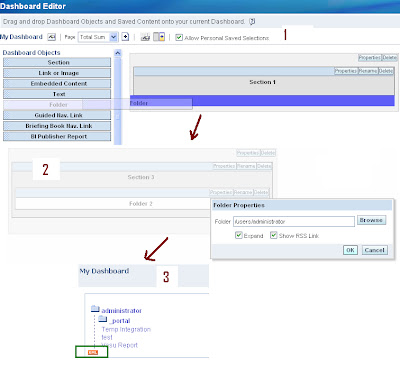
To enable RSS feed option, follow these steps:

1) Go to Dashboard Objects (You can see dashboard objects when you create or edit dashboard pages)
2) Drag and Drop Folder object on to construction page.
3) Click on folder properties, Pops up with web panel.

4) In above panel browse the folder which you want to display on Dashboard.
5) Check enable option ‘Show RSS Link'.
6) Click on save

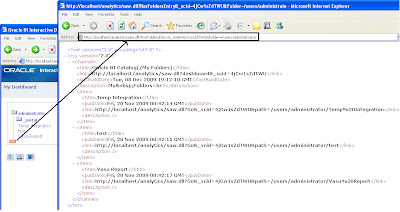
On Interactive dashboard page ‘xml’ icon should appears, which confirms RSS option enabled.

When we click on 'xml' link pops up with atom xml url(as shown below pic)..which we need to use this link to access RSS feed from any application.

How to see/track changes?

In the market there are so many RSS are available as online (NewsGator, Bloglines Beta,Google Reader,FeedShow, Rojo) and client applications .

Many BI dashboards are internal to organization’s network we cannot use any online RSS feed services like Google reader or FeedBurner etc; we need to go with client applications.

In this post I would like to introduce you two client applications which are very widely used by many people.

1) FeedReader

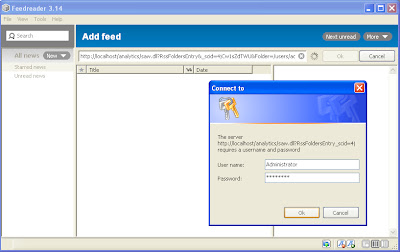
This tool is open source tool. Below pictures shows steps to configure and view rss feeds.

Above pic: Configuring the atom link within FeedReader and provide UserId/Password to authenticate.

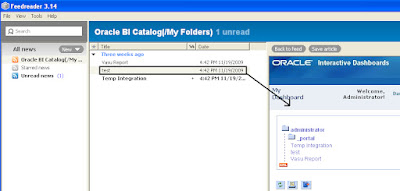
Above pic: First time when FeedReader fetches RSS.

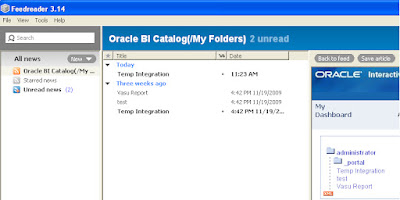
Above pic: After changes made to catalog folder, which were tracked by RSS in FeedReader(shown as Today).

2) RSS option in Outlook - Microsoft Office

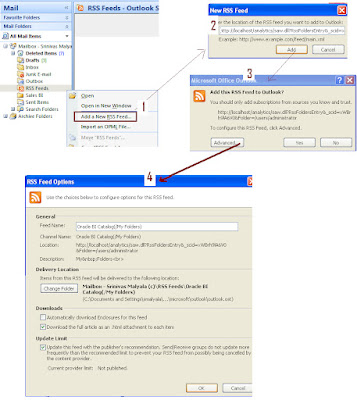
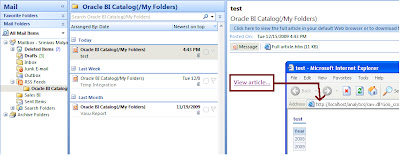
We can use outlook also as client application to track changes. Following pictures will show how to configure and access RSS feeds.

Above pic: Configuring RSS feed in Outlook

Above pic: Sample folder tracked by Outlook RSS.

Note: We need to enable RSS Feed Access through administration manage to see changes.To enable access need to give access as following.

Settings—Administration—Manage Privileges -- RSS Feeds—and give access to whom you want.

In our project we use to enable RSS on one of shared catalog folder to see any changes happened on shared folders reports as many users have access to shared folder. If some one changes, I use to validate changes to make sure every thing working fine and functionally it has meaningful.


For more information:

Adding an RSS Feed Option to a Dashboard Page’s Catalog Folder Page no 209

Introduction to RSS - Outlook - Microsoft Office

How to Get UserID and Password

On OTN this question asked. Question is how to get current UserID and Password on a Report, to address this here I'm posting this blog so that it will be help full to other people as well.
In Reporting we can get userid by using function 'USER()' but there is no flexibility on how to get password

To get password we need to do little trick as shown below.
Create new session initialization block with sql query as
select ':USER',':PASSWORD' from dual
And assign these values to session variables, example GetUser, GetPassword
access these session variables on report by VALUEOF(NQ_SESSION.GetUser) or VALUEOF(NQ_SESSION.GetPassword) respectively.


How to find current value of each Server Variables?

If you want to know current assigned values of server variables with in your BI Server then follow these steps.
1. Open RPD
2. Goto Manage menu tab
3. From manage menu select “Sessions …”
4. Pops up Session Manager
5. From available sessions choose a session
6. Now click on variables tab, it will show all server and session variables and respective values at that particular time.
In general following type of variables you can see here

Session System: all these variables have specific purpose (reserved key words) with in BI system
Exp: USER, DISPLAYNAME, EMAIL, LOGLEVEL, GROUP, LAST_SYNCH_TIME, PORTALPATH, REQUESTKEY, SKIN, WEBGROUPS, PASSWORD

Session Non-System: These variables are created by admin, for various reporting purposes.
Exp: USERROLE, USERGEO, USERCURRENCY etc

Session System and Session Non-System variables are specific to user logged on.

Dynamic Repository Variables:
These variables can be used by any users with in BI system created by admin,
Exp: LASTWEEK, LASTMONTH, YESTARDAY, CURRENTYEAR etc

Static Repository Variables:
These are initialized when BI Server start remain same as long as server runs.
Exp: PATH_TO_RESOURCE_FILES, WELCOME_MESSAGE, etc.

For more information on variables and how to create variables look at here

Best practice: Optimally define dynamic repository variables.


Quickly find out which presenation columns are used in which report

There is no easy way to find out which presentation columns are used in which reports and dashboards. I have come across a situation where we need to quickly identify presentation columns used in each report. I didn’t have enough time to go thru all reports.

To save time, I have created a tool which will output the below information.

Report path and name
Dashboard page name
Presentation column subject area name
All the Filters in the report
All the presentation column names (comma separated)

How to use this tool?

2 Launch cmd
3 In cmd pass parameters as following sequence database SID, Usage track schema user name, password.
Example:
C:\location_of_tool\ReportAnalysisConsoleApplication.exe oracle_database_SID usagetrack_USERID usagetrack_PWD > C:\output_directory_or_what_ever\AnalyzedDataOutput.txt

Prerequisites:
Report should access at least once after usage track enabled.

How to embed My Account link on dashboard page

One of question asked in BI Forum about how to move "My Accounts" link into "My Dashboard"
Here you can see half of solution i.e My Account embedding on to shared dashboard instead of My Dashboard.


To do that

Step 1: Go to C:\OracleBI\web\app folder
Step 2 Create a new file userPref.txt or what ever name you want.
Step 3 Place following code in this file userPref.txt then save the file.
< % @LANGUAGE="JScript" % >
< % Response.Redirect("saw.dll?UserPreferences"); % >(with out spaces between < % or % >)
Step 4 Rename the userPref.txt to userPref.asp (file extension type must be as .asp)
Step 5 Now Create a new dashboard page.
Step 6 Drag and drop Embedded Content object on this new page.
Step 7 Modify Embedded Content’s properties.
Step 8 In URL edit box place this url http://localhost/analytics/userPref.asp
Step 9 save the page.

Same way we can embed sessions, perfmon , Administration on Dashboard.

Leading or Trail Space Trim Issue

If you have column-values with leading or trail spaces those space will be trimmed by presentation services by default, if you drilldown to detail, will lead to no-results or wrong records.

Suppose in your column only these values are there ‘abc’, ‘abc ’ (spaced value),’xyz ’ (spaced value) if you drill on ‘abc’ you will get proper records of 'abc', if we drill on ‘ abc’ will display ‘abc’ records but not ‘ abc’ records, if we drill on ‘xyz ‘ then it will say no results.

To avoid these problems, change column’s data format property to “Plain text (don’t break spaces)” by this property presentation services will not trim leading or trail spaces.
Even in OTN once or twice asked this question, John and Stijn have suggested very good solutions.
I have faced same issue today, I cannot apply my logic because column selected from column selector, so went with Stijn's recommendation.